How to Sign Up for KakaoTalk (2026 Guide): Step-by-Step Registration & Setup
1. Introduction: Why Online KakaoTalk Guides Are Outdated
If you plan to visit South Korea, work with Korean partners, study in Seoul, or chat with Korean friends, KakaoTalk (카카오톡) is an essential app. Used by over 95% of South Koreans, KakaoTalk handles personal messaging, business alerts, taxi booking, and mobile payments nationwide.
However, most online registration guides are obsolete. They instruct readers to:
Enter an email, legal name, and password on the very first screen.
Wait for an incoming 6-digit text verification code.
Check a single terms box.
None of those steps match the 2026 mobile app.
In the current version, there are no email or password fields on the initial screen. Moreover, on Android and international devices, you do not receive an incoming SMS code. Instead, KakaoTalk uses an Outgoing SMS Verification system where your phone sends an encrypted text to Kakao’s server to confirm your SIM card. Crucial privacy settings, like auto-syncing phone contacts, are also enabled by default. This guide walks you through the verified 2026 mobile sign-up flow step by step with real screen captures
2. Core Concepts: Kakao Account vs. KakaoTalk & Nickname vs. ID
Understanding these key terms protects your privacy and prevents setup mistakes.
(1) Kakao Account vs. KakaoTalk
Kakao Account (통합 계정): A master login for all Kakao services, including Kakao Pay, Kakao T (taxi), Kakao Map, and Kakao Page.
KakaoTalk (메신저): The messaging application built on top of your Kakao Account.
When you register in the mobile app, your Kakao Account is created automatically and linked to your phone number. You do not need to visit a website first.
(2) Nickname vs. KakaoTalk ID
Nickname (Display Name): The name shown in chat rooms and contact lists. You can choose any name up to 20 characters and change it anytime.
KakaoTalk ID (Search Handle): A unique username you create yourself so others can add you without knowing your phone number. It is not created automatically; you must set it up in profile settings later. It can only be changed once.
3. What You Need Before You Start
Have these three items ready before opening the app:
(1) The Official KakaoTalk App: Download it from the Google Play Store or Apple App Store. Avoid unofficial APK websites. An Active Mobile Number with Outgoing SMS:
(2) You can use a Korean SIM (+82) or an international phone number (+1 US, +44 UK, +62 Indonesia, +63 Philippines, +61 Australia).
Virtual or VoIP numbers (TextNow, Google Voice) are blocked by Kakao’s anti-fraud system. Use a real carrier SIM.
Ensure your cellular plan can send standard text messages for verification.
(3) An Active Email Address (Optional): Entering an email is optional during sign-up. However, having one ready allows you to recover your account or log in to KakaoTalk Desktop on PC or Mac later.
4. The 8-Step Walkthrough: How to Sign Up for KakaoTalk
Follow these steps directly on your smartphone.
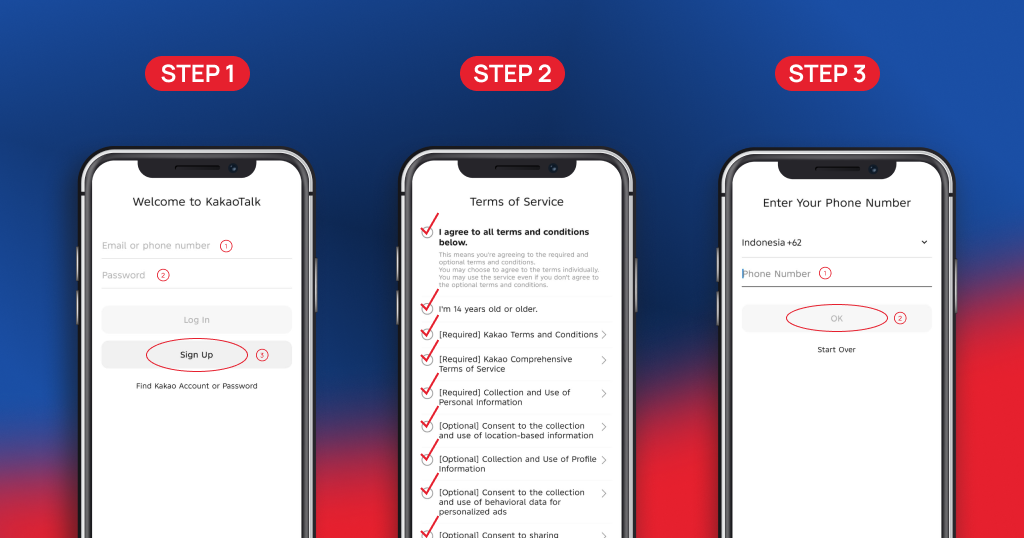
Step 1: Launch the App & Tap Sign Up
Open KakaoTalk on your phone to reach the welcome screen.
You will see “Welcome to KakaoTalk” along with login fields for existing users.
For new accounts, leave the login fields empty and tap “Sign Up” directly below the Log In button.
Tip: If you previously had an account, tap “Log In” or “Find Kakao Account or Password” instead to retain your old chats and contacts.
Step 2: Terms of Service & Privacy Choices
Next, Kakao displays its Terms of Service checklist.
The screen lists an age gate (“I’m 14 years old or older”), 3 [Required] legal agreements (Terms, Comprehensive Terms, Personal Information), and 4 [Optional] marketing consents (Location, Profile, Behavioral Ads, Sharing).
Privacy Tip: Check only the age requirement and the 3 [Required] items. Leave the 4 optional items unchecked to avoid ad tracking. Messaging, voice calls, and group chats will work completely normally.
Tap the yellow “Agree and Continue” button.
Step 3: Enter Your Phone Number
Enter your mobile phone number for carrier-level authentication.
Check the country code dropdown. If incorrect, tap it and pick your country (e.g., South Korea +82, United States +1, Indonesia +62).
Enter your mobile phone number. Omit leading zeroes if formatted automatically.
Tap “OK”.
Step 4: [Crucial] Send Outgoing Verification SMS
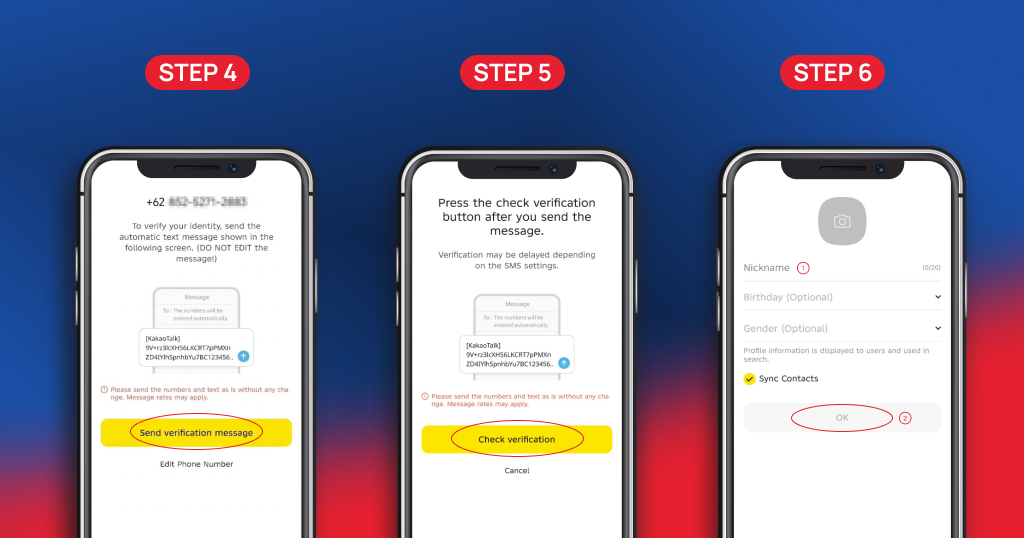
KakaoTalk prompts you to verify your identity by sending an automated outgoing text message.
Notice on screen: “To verify your identity, send the automatic text message shown in the following screen. (DO NOT EDIT the message!)”
A preview shows an encrypted token string addressed to Kakao’s server.
Instructions: Tap yellow “Send verification message”. Your SMS app opens with recipient and token pre-filled.
IMPORTANT: Do not edit any text or numbers. Send the message as it appears to prove your SIM card is active.
Step 5: Check Verification
After sending the text, switch back to KakaoTalk.
The screen reads: “Press the check verification button after you send the message.”
Once your messaging app confirms the SMS was sent, tap the yellow “Check verification” button.
Kakao verifies receipt of the message and transitions to profile setup.
Step 6: Profile Setup & Contact Privacy
Set up your public profile details.
Profile Picture: Tap the camera circle to add a photo or skip it. You can update your photo anytime.
Nickname (0/20): Required field. Enter at least 1 character. You do not need to use your real legal name; any screen handle is accepted.
Birthday & Gender: Optional fields. You can leave them blank.
⚠️ Privacy Alert (Sync Contacts):
[✓] Sync Contacts` is checked by default.
Leaving this checked automatically adds everyone in your phone book to KakaoTalk.
Uncheck “Sync Contacts” before tapping OK to protect contact privacy.
Step 7: Email Setup (Optional & Skippable)
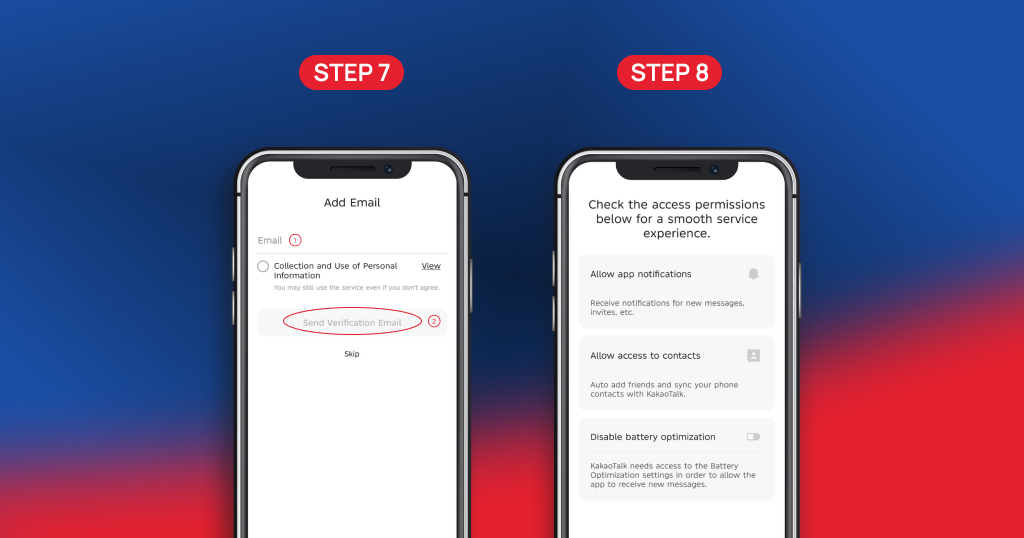
The email registration screen is completely optional.
The screen states: “You may still use the service even if you don’t agree.”
Option 1 (Fast Setup): Tap “Skip” at the bottom to finish sign-up immediately.
Option 2 (Backup & PC Login): Enter your email and verify it to enable PC/Mac desktop logins later.
Step 8: Device Permissions & Completion
Finally, grant Android permissions for smooth operation.
(1) Allow app notifications: Enable this to receive chat and call alerts.
(2) Allow access to contacts: Leave off if you unchecked contact sync in Step 6.
(3) Disable battery optimization: Enable this so Android does not sleep KakaoTalk in the background.
(4) Tap “OK”, confirm system prompts, and you will reach your Friends list. Sign-up is complete!
5. Required vs. Optional Summary Matrix
| Step | Item | Status | Action & Privacy Recommendation |
|---|---|---|---|
| Step 1 | Sign Up Button | Required | Tap “Sign Up” for new accounts. |
| Step 2 | Age Gate (14+) | Required | Mandatory legal checkbox. |
| Step 2 | Core Terms (3 items) | Required | Essential for service access. |
| Step 2 | Marketing & Ads (4 items) | Optional | Leave unchecked for ad privacy. |
| Step 3 | Phone Number | Required | Use real carrier SIM (VoIP fails). |
| Step 4–5 | Outgoing Verification SMS | Required | Do not edit text; send as generated. |
| Step 6 | Nickname (Max 20 chars) | Required | Mandatory screen display name. |
| Step 6 | Profile Photo & Birthday | Optional | Safe to skip. |
| Step 6 | Sync Contacts Toggle | Optional (Default ON) | Uncheck before tapping OK to protect privacy. |
| Step 7 | Email Registration | Optional | Tap “Skip” or link for desktop login. |
| Step 8 | App Notifications | Recommended | Needed for real-time message alerts. |
| Step 8 | Battery Optimization | Recommended | Prevents background message delays. |
6. Critical Post-Registration Settings
After completing sign-up, configure these four features:
1. Create Your KakaoTalk ID & Search Privacy
Friends can only add you by phone number initially. To share a handle:
Tap the Settings icon (Gear) on the Friends tab.
Tap “Profile” and select “KakaoTalk ID” to create a handle (e.g., alex_seoul_2026).
Set the toggle “Allow Search by ID” (아이디 검색 허용):
Turn it On when you want friends to find you.
Turn it Off to prevent strangers from searching your handle.
2. Multi-Profiles (멀티프로필)
KakaoTalk lets you create up to three secondary profiles. You can show a formal photo to colleagues and personal photos to friends. Tap “Make a Multi-Profile” under your profile card to set this up.
3. Pair KakaoTalk with Desktop (PC / Mac)
To chat on your computer, download the client from kakaocorp.com. If you skipped email registration during Step 7, open the mobile app, go to Settings → Kakao Account, and add an email and password. Then log in on desktop and verify your device.
4. Enable Chat Backup
Before switching phones, go to Settings → Chats → Chat Backup to create a free 14-day cloud backup of text conversations.
5. Two-Step Verification for Security
To protect your account against unauthorized access, go to Settings → Kakao Account → Two-Step Verification. When enabled, logging into an unfamiliar phone or computer requires an approval prompt on your primary device.
7. Troubleshooting Common Sign-Up Errors
Issue 1: Outgoing SMS fails to send
Edited Text: If you modified the text string, cancel, tap “Send verification message” again, and send without edits.
Carrier Block: Check with your mobile provider to ensure outgoing international SMS is enabled.
Issue 2: “Temporarily restricted on other devices”
If you made multiple rapid attempts, Kakao’s security filter may temporarily lock your number. Wait 24 to 48 hours before retrying, or contact customer service at cs.kakao.com.
Issue 3: Virtual number (VoIP) rejected
Numbers from TextNow or Google Voice are blacklisted. You must use a genuine SIM card from a mobile carrier.
Issue 4: Dual-SIM phone sending from wrong line
If your phone uses two active SIM cards, check that your default outgoing SMS line matches the number registered with KakaoTalk. A verification text sent from your secondary SIM will cause the server handshake to fail.